Charge customers
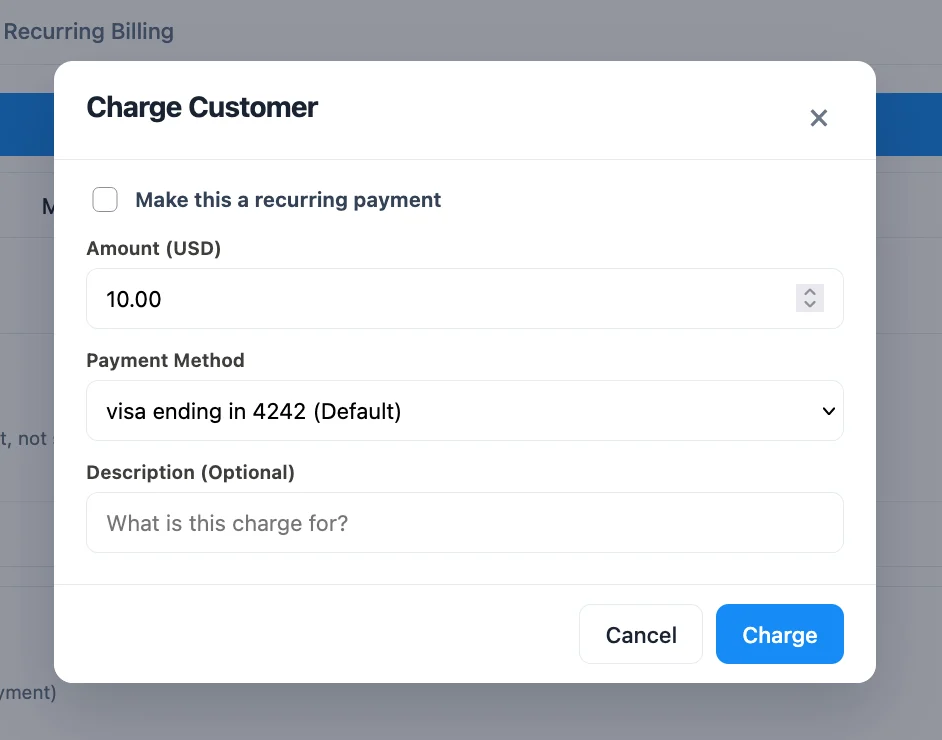
Charge a saved card for any amount, once or on a recurring schedule, with a note about what it's for.
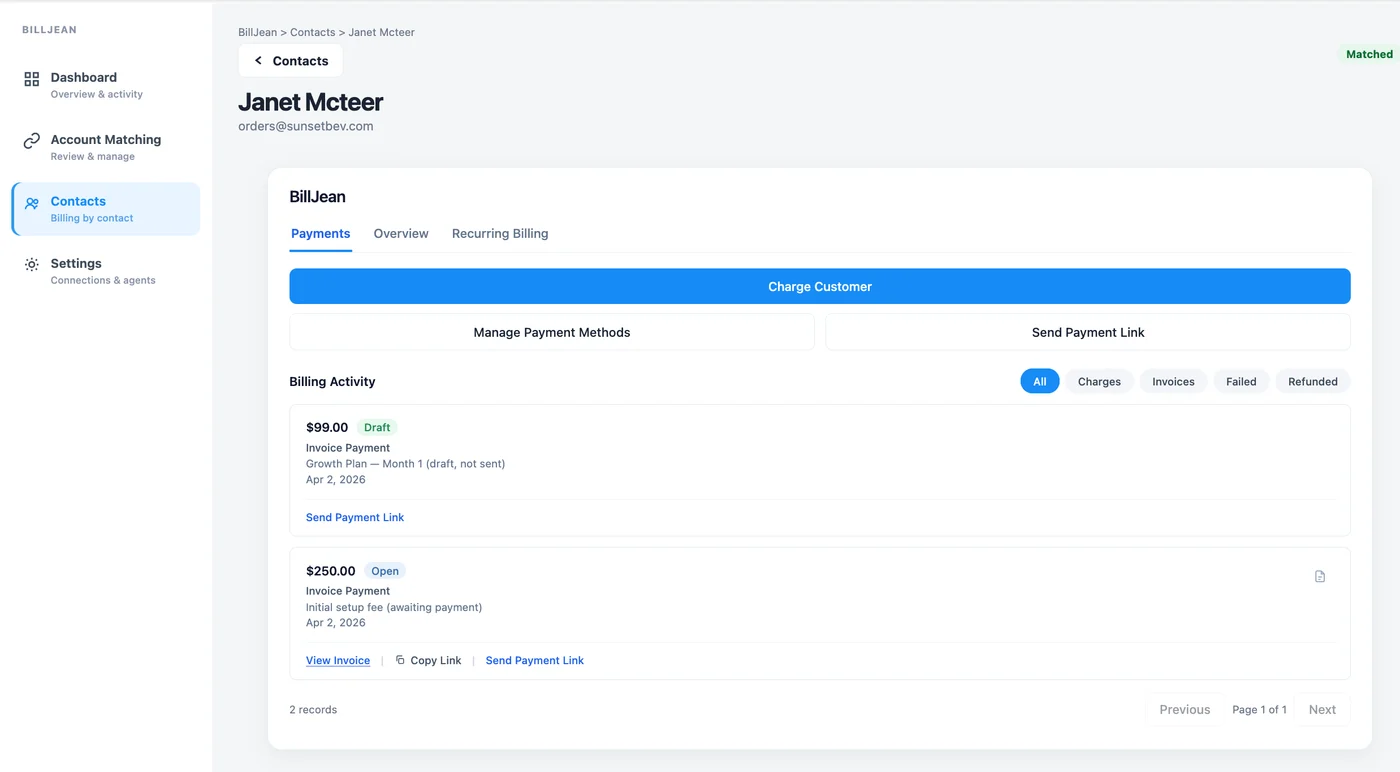
See a contact's Stripe charges, invoices and saved cards right from the CRM. Charge a card or send a payment link in a few clicks, without logging in to Stripe or asking anyone whether the customer paid.
BillJean links each CRM contact to its Stripe customer. After that, anyone you give access to can see and act on that customer's billing.
Charge a saved card for any amount, once or on a recurring schedule, with a note about what it's for.
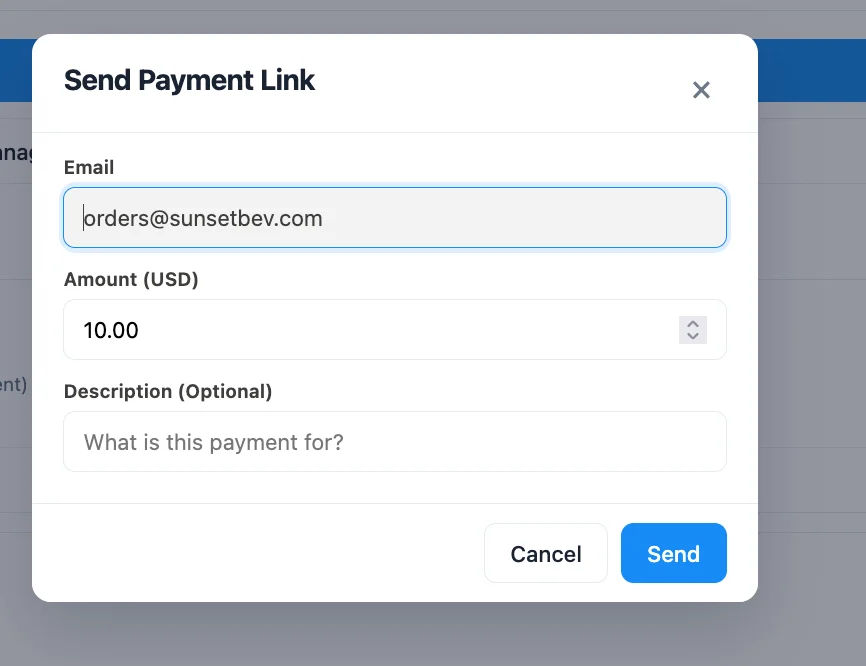
Email a Stripe payment link for a set amount, or resend the link for an open invoice.
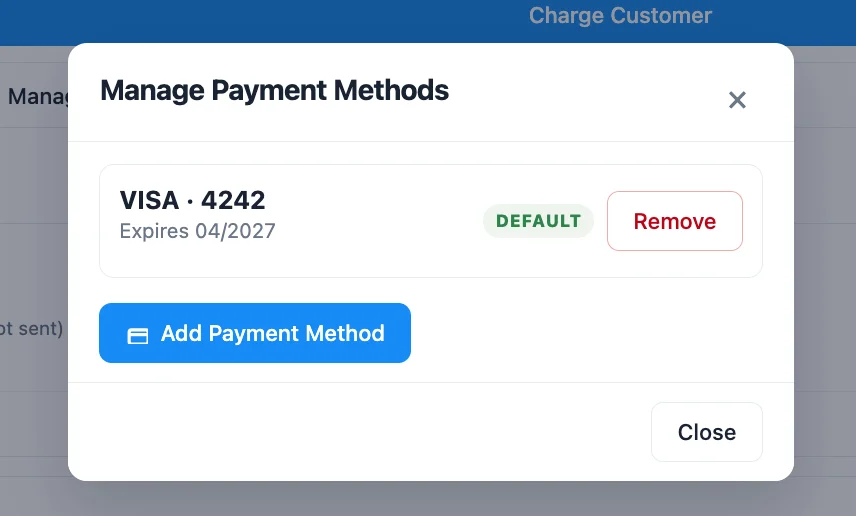
See saved cards and expiry dates, set the default, add a new card or remove an old one.
Charges and invoices with status and dates. Filter by charges, invoices, failed or refunded.
Link contacts to Stripe customers in one click by email, email domain, company name and website. Search to link the rest.
Each contact shows its BillJean status and a link to its billing page under Additional Info.
Payments, an overview and recurring billing in tabs, with the actions your team uses most at the top.
The getting started guide walks through each step with screenshots.
Paste the BillJean script into Custom JS under your agency's White Label settings, once for all sub-accounts.
The sub-account admin opens BillJean from the sidebar and connects Stripe through Stripe's own authorization page.
Pick which agents can see and act on Stripe billing. Change it any time in Settings.
Run Auto-Match to link contacts to Stripe customers, review anything uncertain, and you're done.
You connect through Stripe's sign-in page. We never ask for your Stripe password, and you can revoke access from Stripe at any time.
Card details stay with Stripe. BillJean shows only the brand, last four digits and expiry.
Only the agents you choose can see billing data. Everyone else in the sub-account can't.
We don't sell customer data, and we don't use it for advertising.
Book a 20-minute Google Meet and we'll install it on your account together. Or email hello@billjean.com.
Book a time