BillJean / Stripe Payments & Billing / Getting started
Getting started
Thanks for installing Stripe Payments & Billing by BillJean. Setup has three parts: the agency adds one line of code once, each sub-account admin runs a five-step setup, and then the team uses it on every contact.
Book a 20-minute walkthrough on Google Meet. We'll do the setup together, on your account.
Add the BillJean script Agency
This is the most important step. The script is what puts BillJean links next to each contact for your sub-account users. You only do it once, from your agency view, and it covers every sub-account.
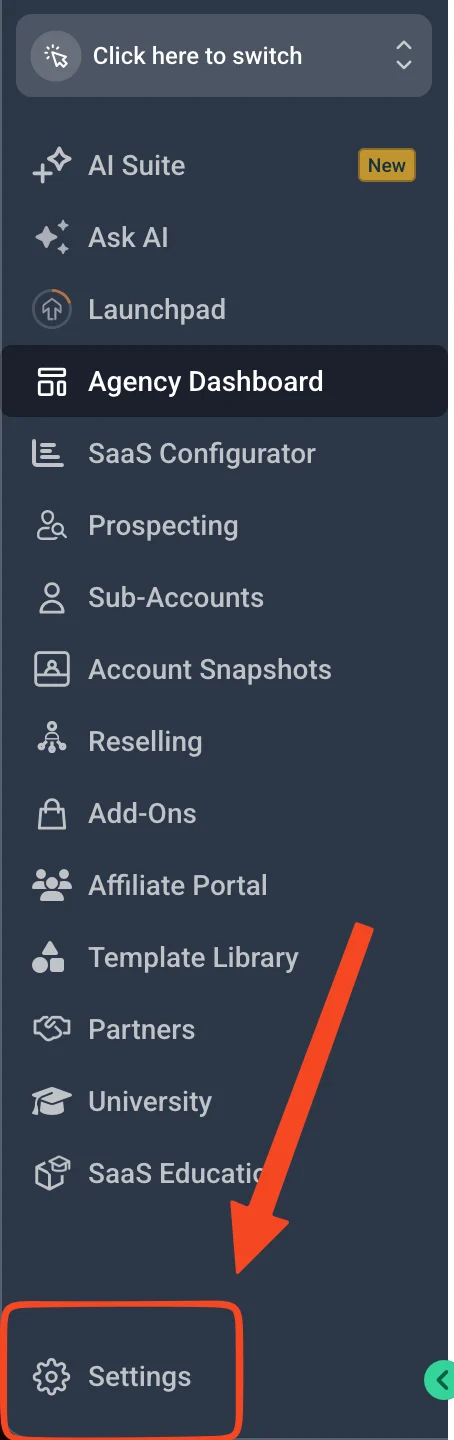
Open Settings in your agency view
Make sure you're in the agency view, not inside a sub-account. Click Settings at the bottom of the left sidebar.
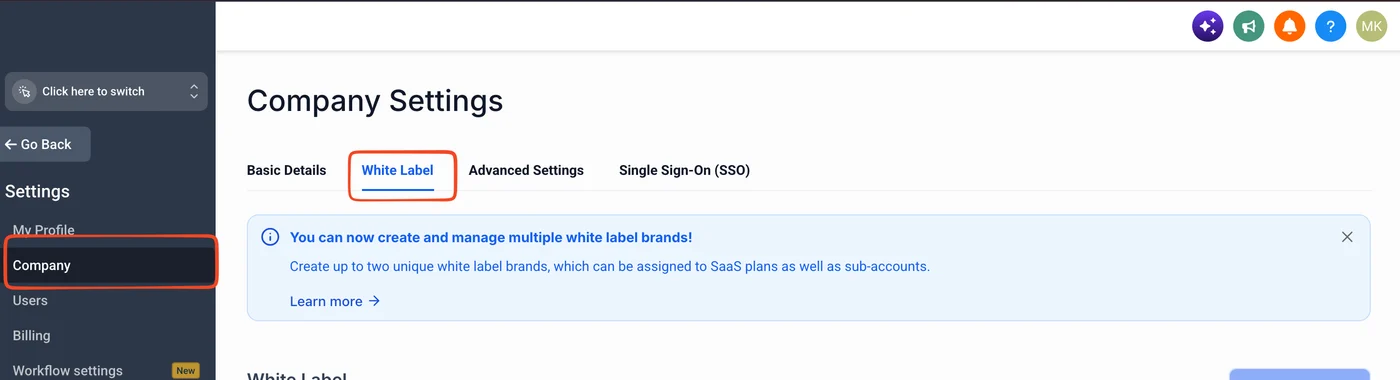
Go to Company, then White Label
In Settings, click Company, then open the White Label tab: Settings → Company → White Label
Paste the code into Custom JS
Scroll down to the Custom JS section and paste this code exactly as it is:
<script src="https://stripe.billjean.stage.n-framescorp.com/app/stripe-billjean-contact.js"></script>
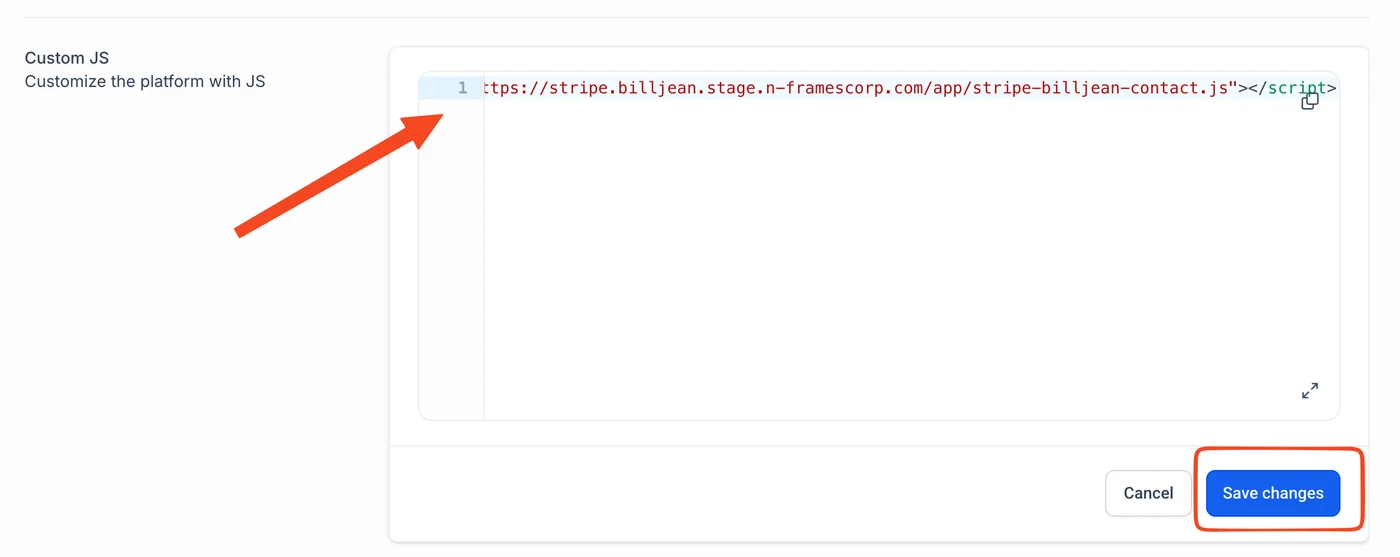
Click Save changes
Click Save changes under the Custom JS box. That's all for the agency.
First-time setup Sub-account admin
Each sub-account that uses BillJean runs this setup once. It takes about five minutes and needs the person who can sign in to the business's Stripe account.
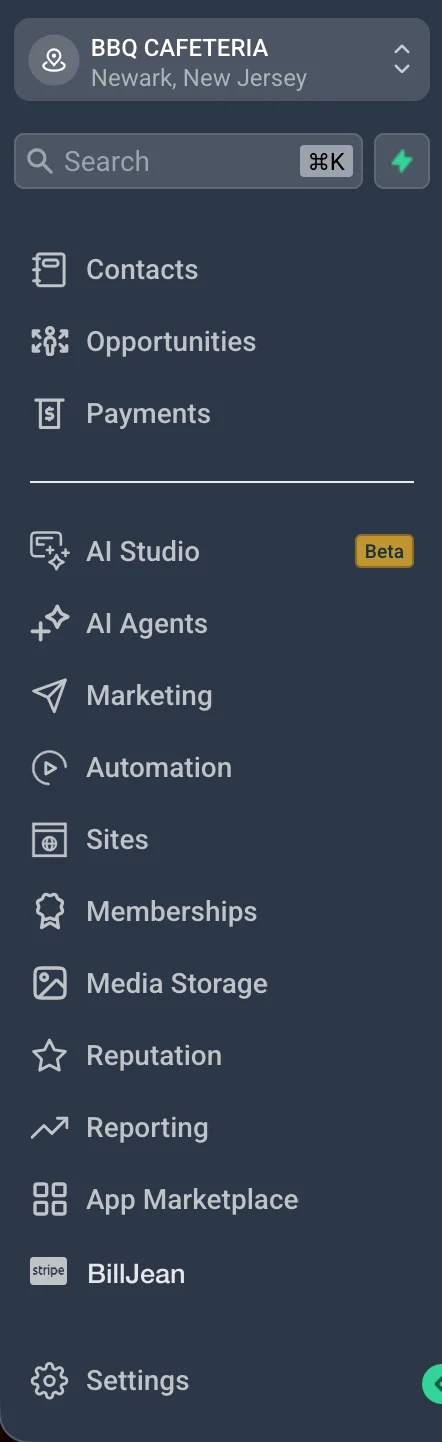
Open BillJean from the sidebar
Inside the sub-account, click BillJean in the left sidebar. The first time you open it, the setup starts on its own.
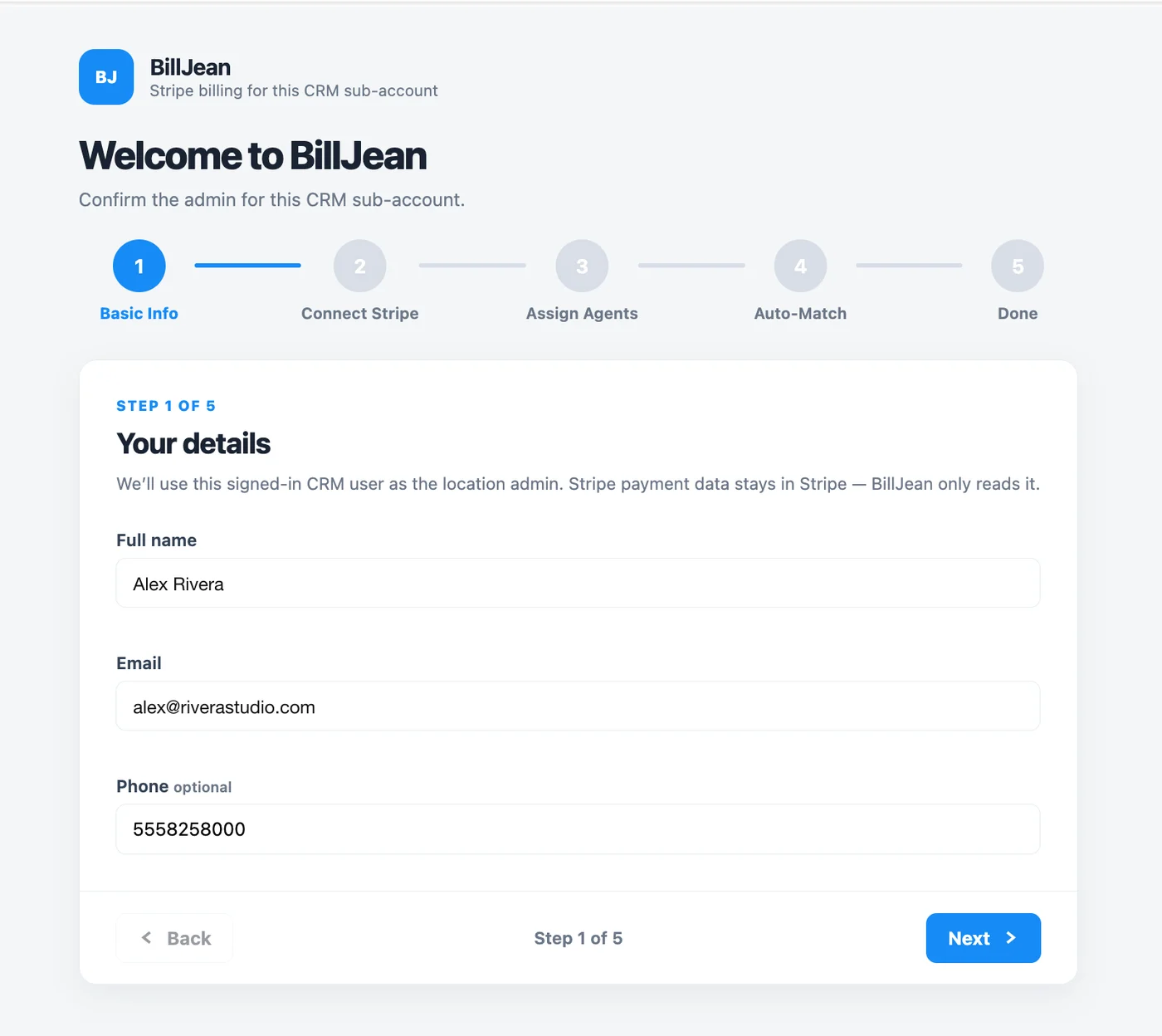
Enter your basic info
Confirm your full name, email and, if you like, your phone. The signed-in user becomes the BillJean admin for this sub-account. Click Next.
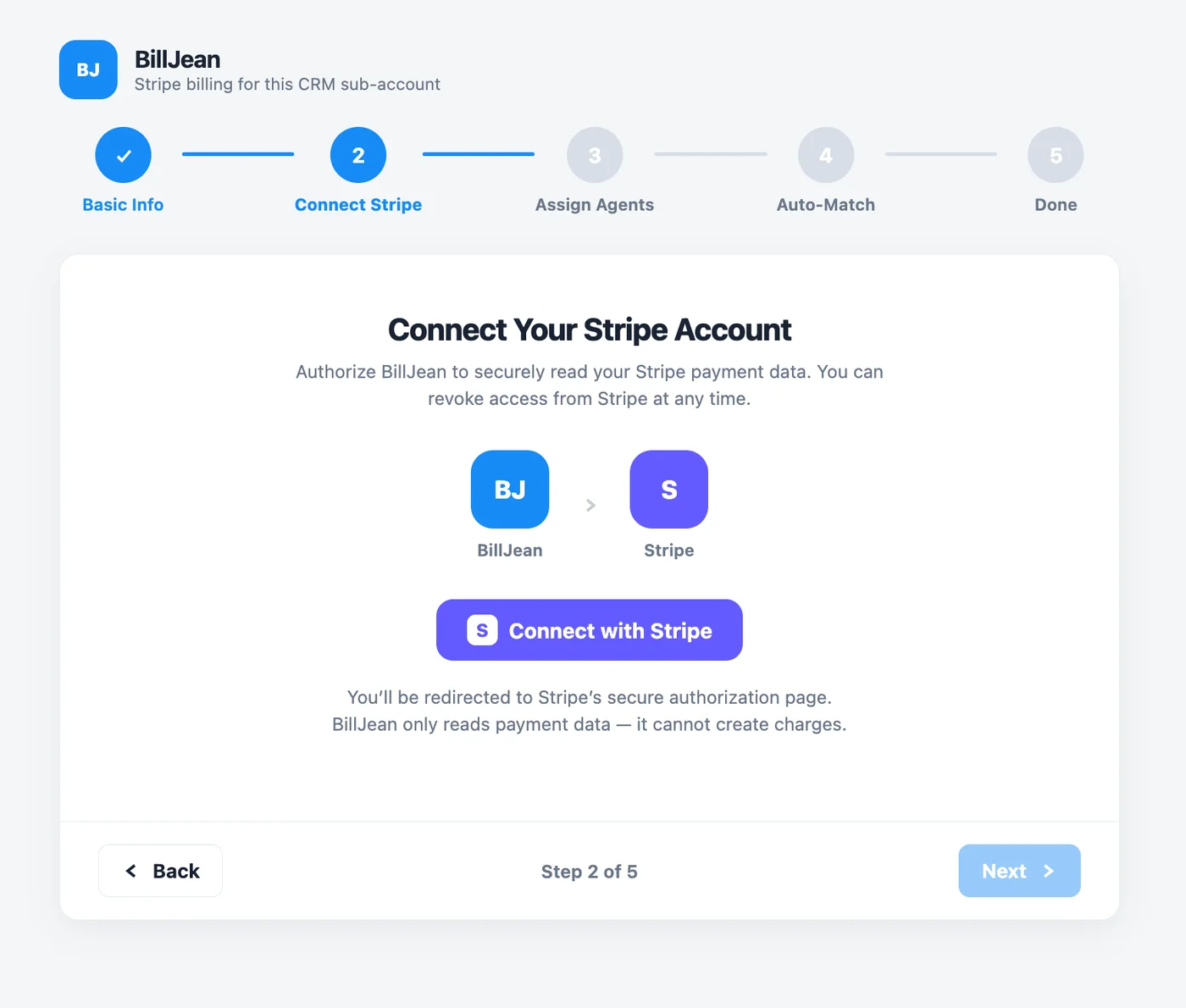
Connect your Stripe account
Click Connect with Stripe. You'll go to Stripe's own sign-in and authorization page, approve access, and come back to BillJean. We never see your Stripe password, and you can revoke access from Stripe at any time.
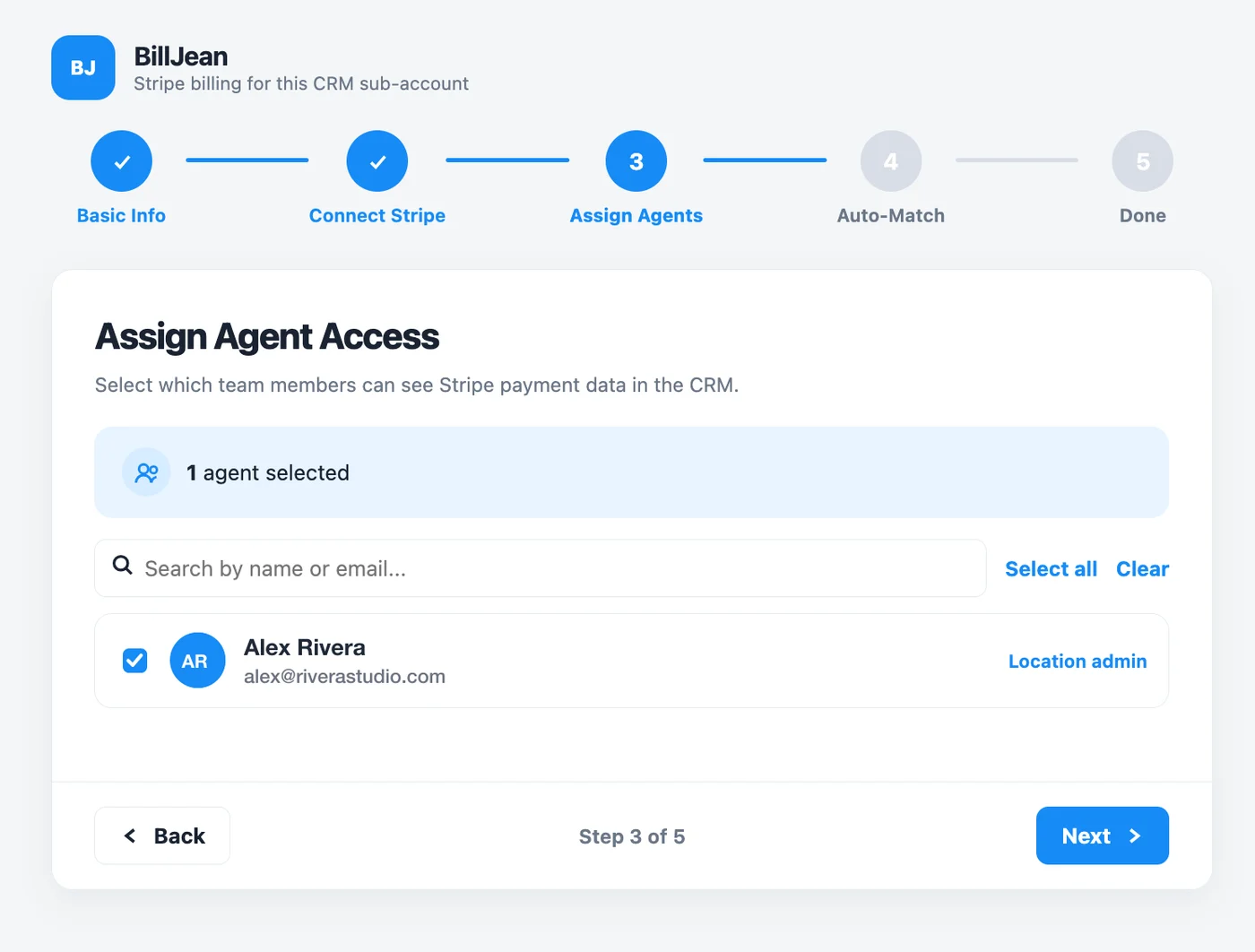
Choose which agents get access
Pick the team members who should see Stripe billing on contacts. Search by name or email, or use Select all. You can change this later in BillJean's Settings.
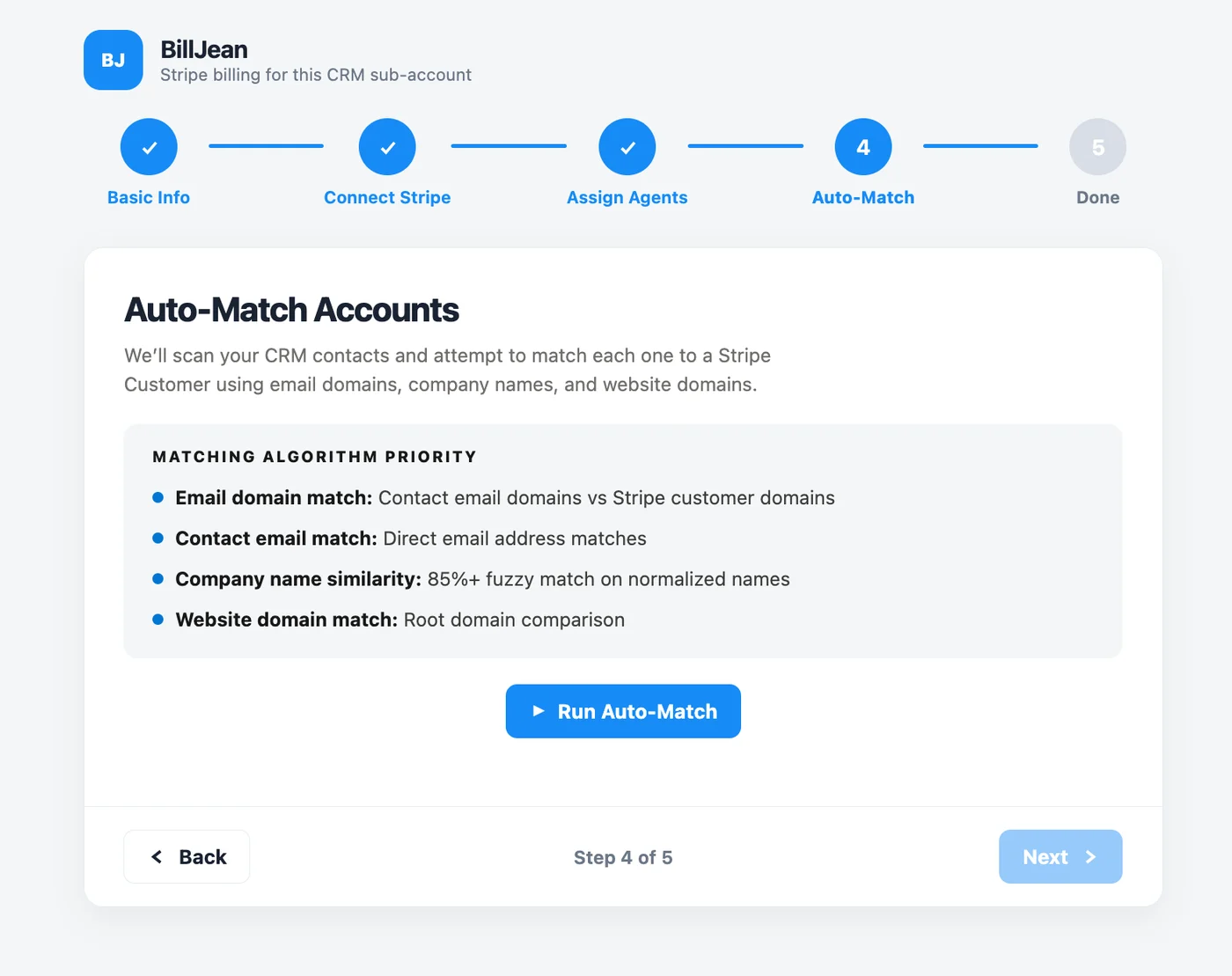
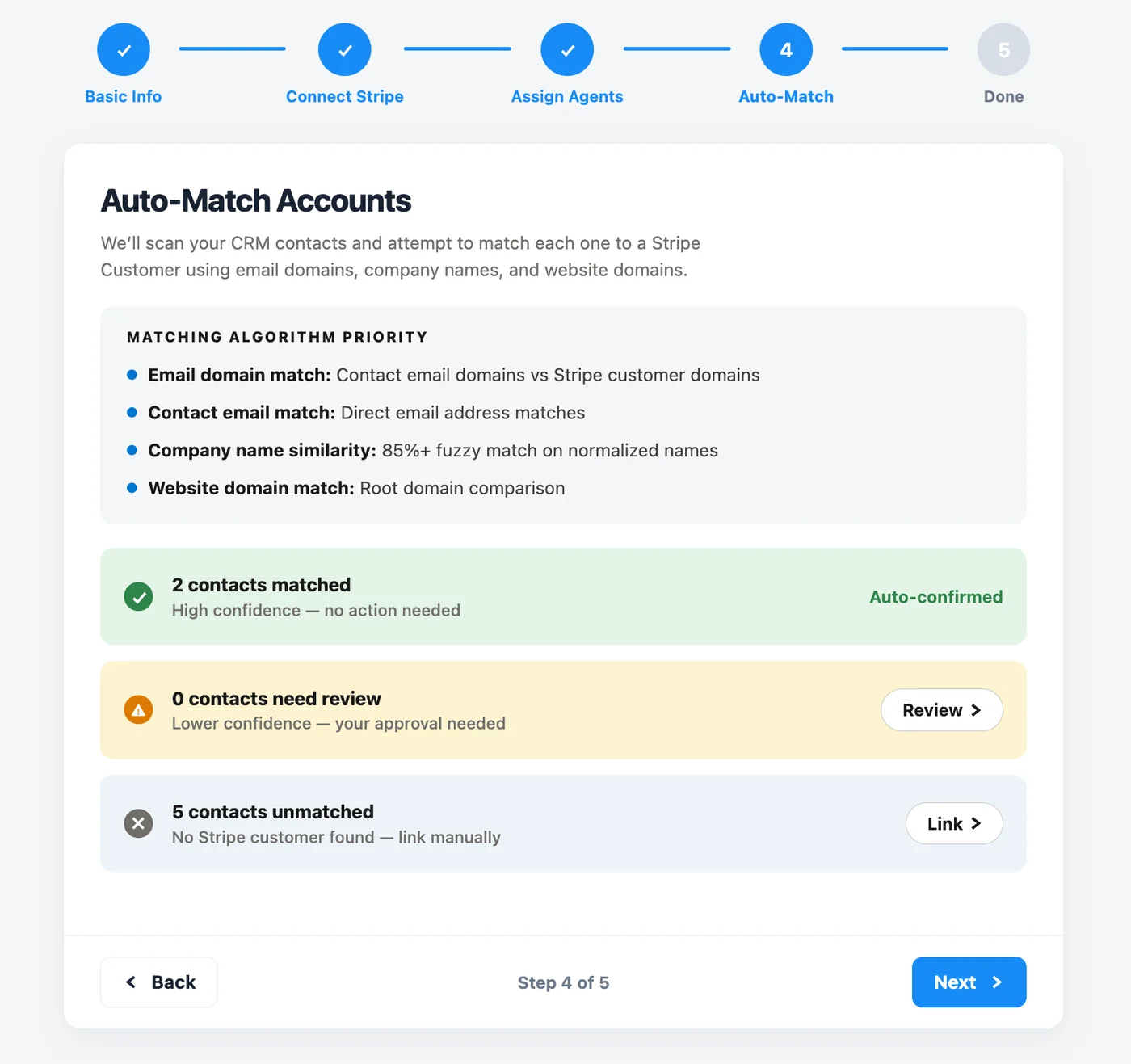
Auto-match contacts to Stripe customers
Click Run Auto-Match. BillJean scans your CRM contacts and links each one to its Stripe customer, checking in this order:
- Email domain: the contact's email domain against Stripe customer domains
- Contact email: exact email address matches
- Company name: 85%+ similarity on normalized names
- Website domain: root domain comparison
You'll get three groups. Matched contacts are high confidence and confirmed automatically. Need review are lower-confidence matches you approve with Review. Unmatched contacts have no Stripe customer yet; use Link to match them by hand now, or do it later from the contact.
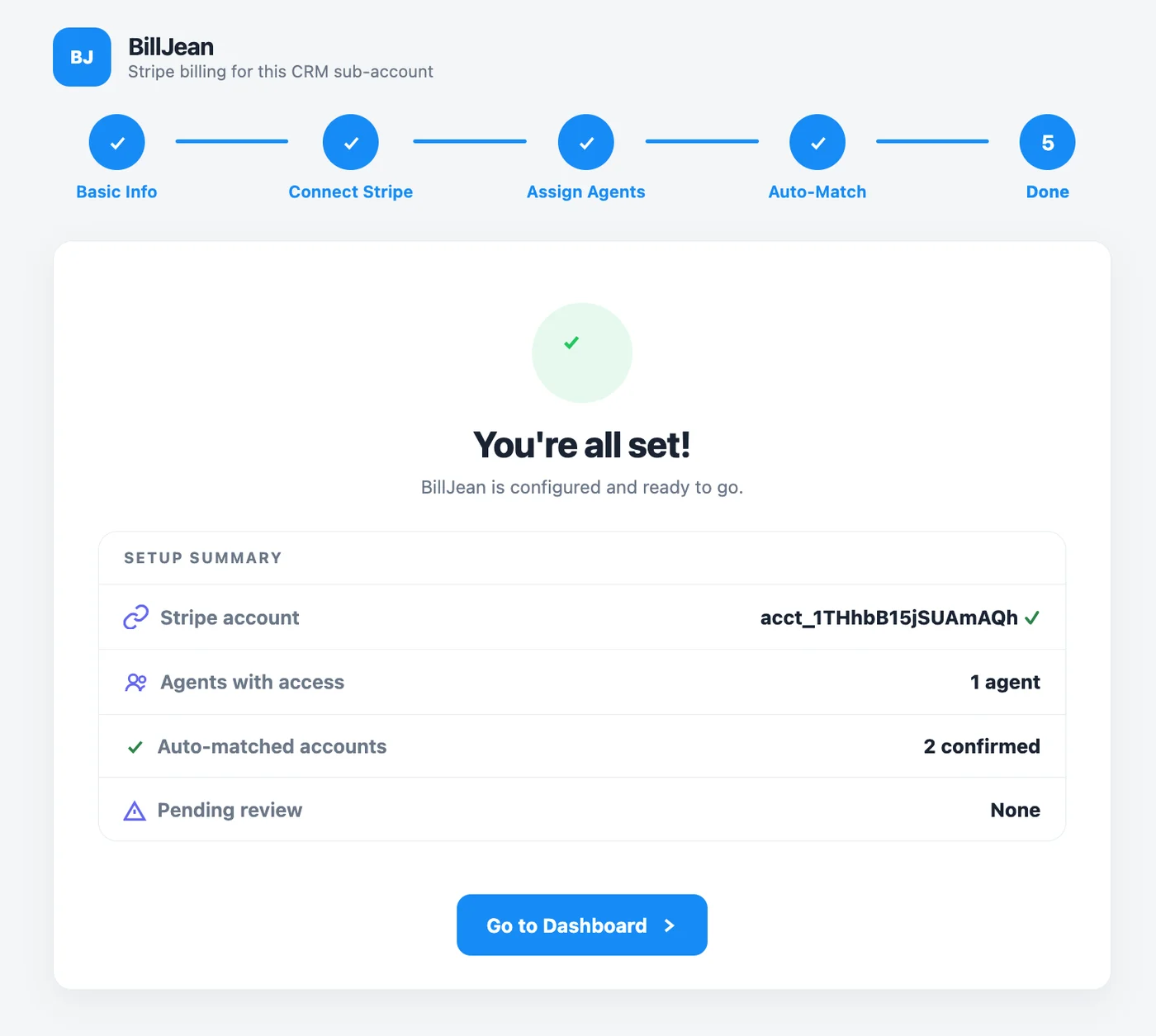
Done
The summary shows the connected Stripe account, how many agents have access, how many contacts were matched, and anything still waiting for review. Click Go to Dashboard.
Using BillJean every day Everyone
BillJean has four areas: Dashboard for an overview and recent activity, Account Matching to review and manage matches, Contacts for billing by contact, and Settings for the Stripe connection and agent access.
Matched contacts: everything from Stripe in one place
Open a matched contact to see its Stripe billing. The page has three tabs, Payments, Overview and Recurring Billing, and these actions:
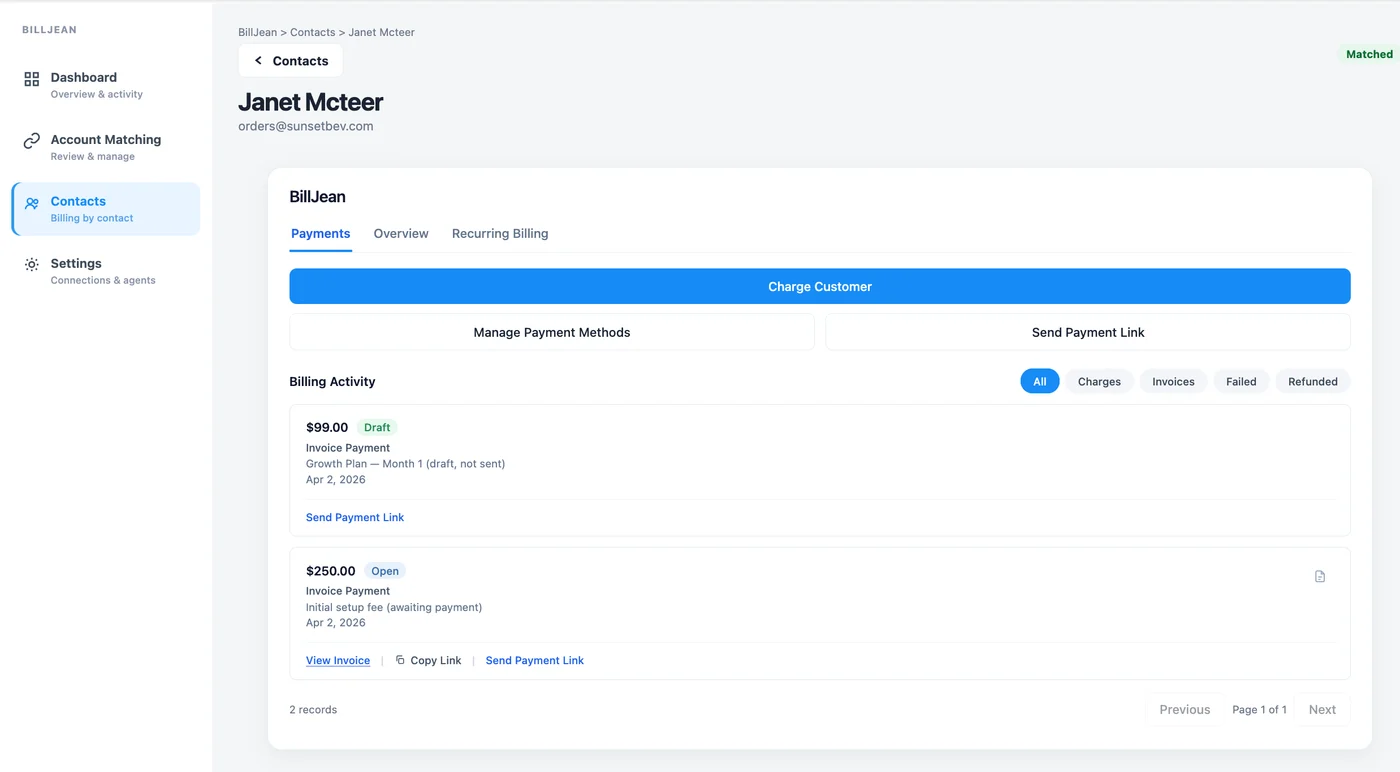
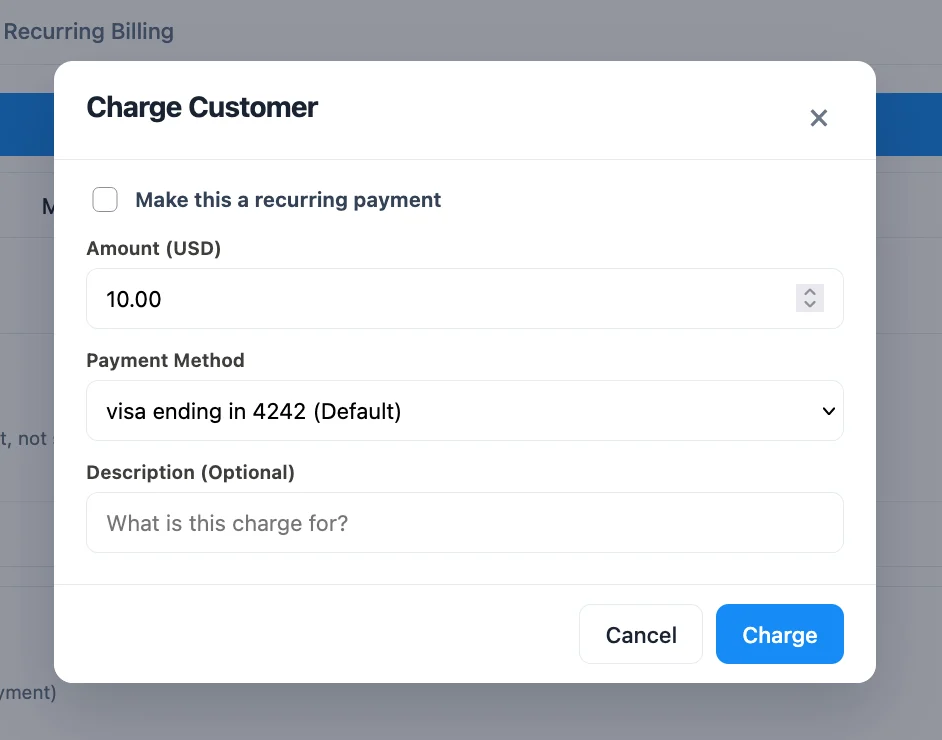
- Charge CustomerCharge a saved card for any amount, as a one-time payment or a recurring one, with an optional description.
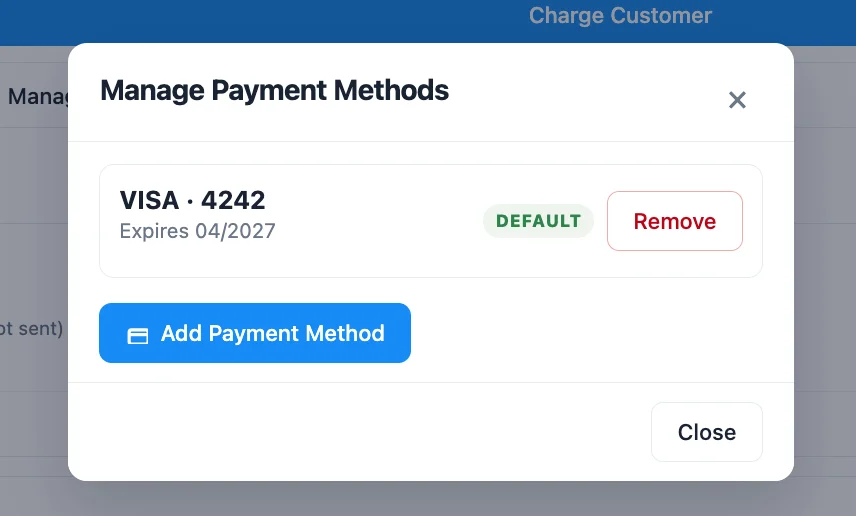
- Manage Payment MethodsSee saved cards and expiry dates, set the default, add a new card or remove one.
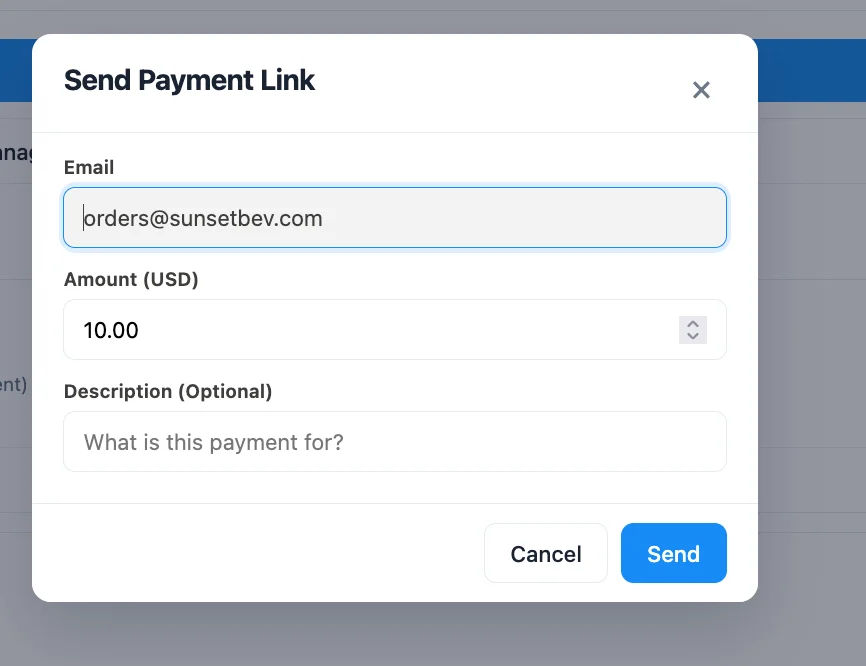
- Send Payment LinkEmail the customer a Stripe payment link for an amount you choose.
- Billing ActivityEvery charge and invoice with its amount, status, description and date, page by page.
- FiltersNarrow the activity to All, Charges, Invoices, Failed or Refunded.
- Invoice actionsOn each invoice: View Invoice, Copy Link, or Send Payment Link for open and draft invoices.
- Status at a glanceStatus badges such as Draft and Open on each item, plus a Matched label on the contact.
- Recurring BillingA separate tab for the customer's recurring payments.
Unmatched contacts: search and link
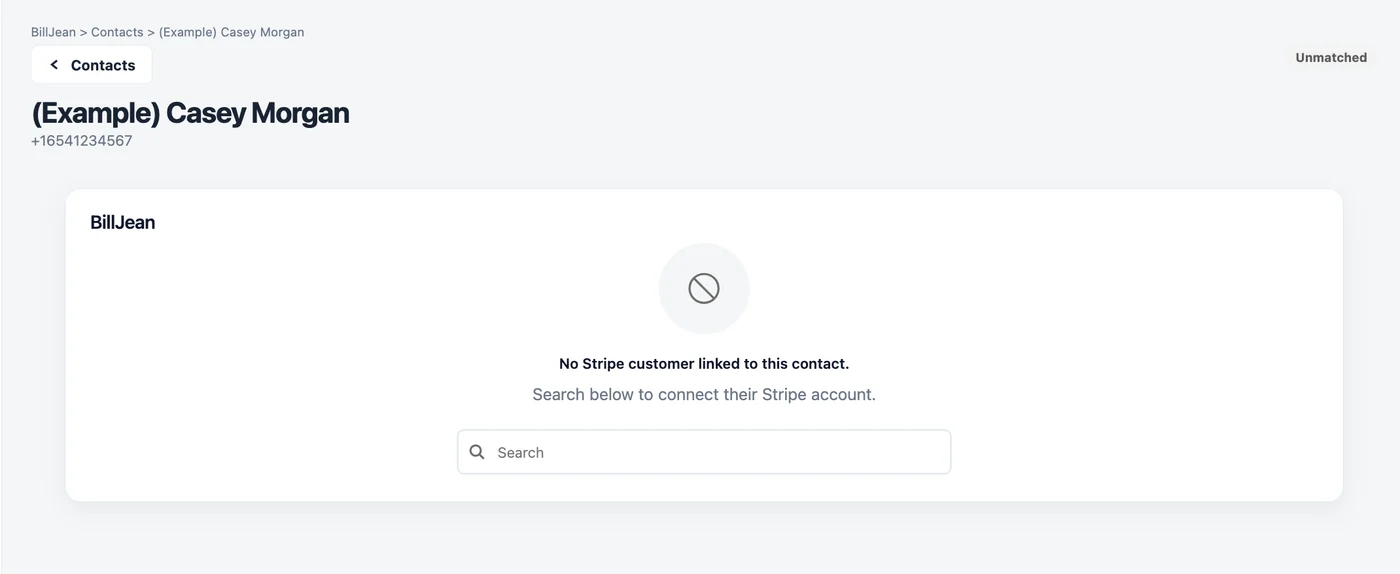
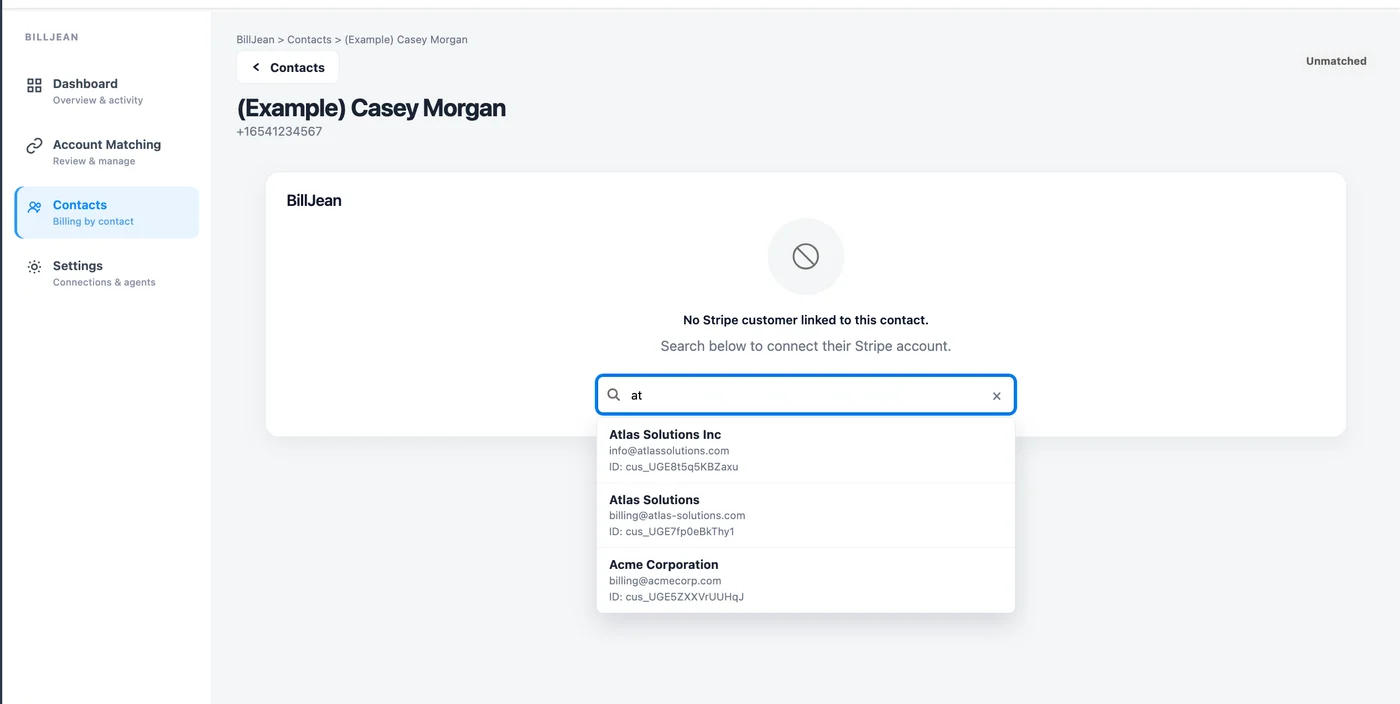
If a contact isn't linked to a Stripe customer yet, its BillJean page says so and shows a search box. Type a name, email or company, and pick the right Stripe customer from the results. Each result shows the customer's name, email and Stripe ID so you link the right one. From then on, the contact shows its full billing.
Open billing straight from the CRM contact
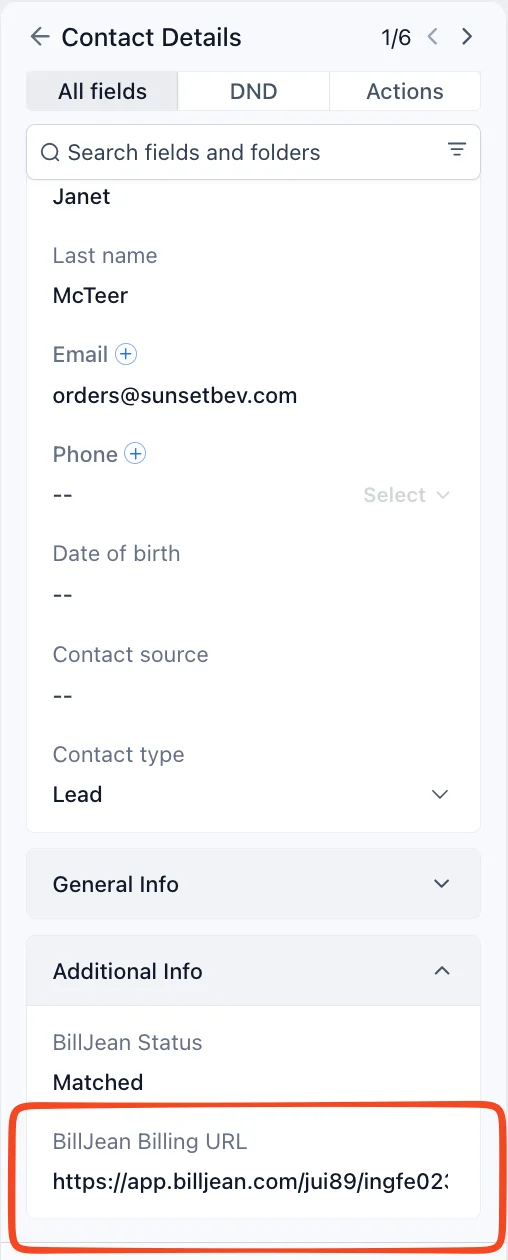
You don't need to open BillJean and search. On any contact in the CRM, look under Additional Info:
- BillJean Status shows whether the contact is matched to Stripe.
- BillJean Billing URL opens that contact's billing page in BillJean.
So when a customer calls about an invoice, the answer is one click away from the contact you already have open.
Rather do it together? We'll set it up with you, free.
A 20-minute Google Meet. We'll add the script, connect Stripe and run the first auto-match with you. Or email hello@billjean.com.
Book a time